Variables
Variables
Variables store data that persists throughout your story. Use them to track player options, inventory, stats, quest progress, and any other state that changes as the narrative unfolds.
Overview
Variables are a core component of StoryFlow's visual scripting system (also referred to as the node editor), allowing you to create dynamic, reactive stories that remember player actions and adapt based on their selections. You can get and set variable values without writing any code, enabling complex interactive narratives with branching paths, conditional dialogue, and stat-based gameplay.
What Variables Enable:
- Track whether the player has completed quests or talked to NPCs
- Store inventory items, health points, gold amounts, and other stats
- Create conditional dialogue that changes based on previous selections
- Build relationship systems, karma meters, and alignment tracking
- Share state between different script files using global variables
Key Concept
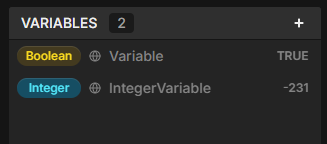
Every variable has a name, a type (Boolean or Integer), a value, and a scope (Local or Global). Variables are managed in the Variables Panel on the left side of the editor.
Variable Types
StoryFlow Editor supports two variable types: Boolean and Integer. Each type serves different purposes and has different node types for reading and writing values.
Boolean Variables
Visual Indicator: Boolean
Values: true or false
Purpose: Store yes/no, on/off, has/doesn't have states. Booleans are perfect for flags, switches, and binary conditions.
Common Examples:
- BooleanhasKey - Player has obtained the key
- BooleantalkedToGuard - Player has spoken with the guard
- BooleanquestCompleted - Quest has been finished
- BooleandoorIsOpen - Door state
- BooleanplayerIsAlive - Player alive status
- BooleanacceptedQuest - Player accepted a quest offer
Integer Variables
Visual Indicator: Integer
Values: Whole numbers (positive, negative, or zero)
Purpose: Store numeric data like counts, stats, scores, and quantities. Integers can be used in mathematical calculations and comparisons.
Common Examples:
- IntegerplayerHealth - Current hit points (e.g., 100)
- IntegergoldAmount - Currency quantity (e.g., 500)
- IntegerquestProgress - Completion percentage (e.g., 3 out of 5)
- IntegerrelationshipLevel - NPC affection rating (-10 to +10)
- IntegerenemiesDefeated - Kill count (e.g., 15)
- IntegerdaysPassed - In-game time tracking (e.g., 7)
| Feature | Boolean | Integer |
|---|---|---|
| Color | Boolean | Integer |
| Possible Values | true, false | ..., -2, -1, 0, 1, 2, ... |
| Default Value | false | 0 |
| Logic Nodes | And, Or, Not, Equal | >, >=, <, <=, ==, +, - |
| Use Cases | Flags, switches, states | Stats, counts, quantities |
Creating Variables
Variables are created and managed through the Variables Panel on the left side of the editor. The panel shows all variables for the current script file.
To Create a New Variable:
- Open a script file in the editor (variables belong to scripts)
- Look at the Variables Panel on the left sidebar
- Click the Add button (+) at the top of the panel
- A dropdown appears with two options: Boolean or Integer
- Select the type you need
- A new variable appears in the list with a default name (e.g., "NewVar0")
- Click the variable name to rename it to something descriptive
Naming Variables
Use descriptive names that clearly convey purpose. You're free to choose whatever naming style you prefer - camelCase, snake_case, spaces, or any other format. Examples:
- BooleanhasCompletedQuest (camelCase)
- Booleanhas_completed_quest (snake_case)
- BooleanHas Completed Quest (with spaces)
- IntegerplayerGold (camelCase)
- IntegerPlayer Gold (with spaces)
The key is to maintain consistency throughout your project and keep names descriptive. Good names make your logic self-documenting and easier to understand when you return to the project later.
Variable Panel Features:
- Variable List: Shows all variables for the current script
- Type Indicator: Boolean for boolean, Integer for integer
- Global Marker: icon appears next to global variables
- Count Badge: Header shows total number of variables
- Drag to Canvas: Drag a variable onto the canvas to quickly create Get/Set nodes
Local vs Global Variables
Variables in StoryFlow Editor can have two different scopes: Local (default) or Global. Understanding the difference is crucial for organizing multi-script projects.
Local Variables
Scope: Exist only within the current script file
Storage: Saved inside the .sfe script file
Lifespan: Reset to default values each time the script starts
Use Cases:
- Temporary state within a single scene or dialogue
- Loop counters and intermediate calculations
- Conversation-specific flags (e.g., BooleanaskedAboutQuest in a merchant dialogue)
- Local options that don't need to persist (e.g., dialogue option tracking)
Example: A dialogue script for a merchant might have a local BooleanshowSecretOption that tracks whether the player asked the right questions in that specific conversation. It doesn't need to be global because it's only relevant to that one dialogue tree.
Global Variables
Scope: Accessible from ALL script files in the project
Storage: Saved in global-variables.json at the project root
Lifespan: Persist across script transitions and play sessions
Visual Indicator: Globe icon next to the variable name
Use Cases:
- Player stats that persist throughout the game (health, gold, experience)
- Quest completion flags accessed from multiple scripts
- Inventory items that affect dialogue across different scenes
- Story progression flags (chapter completed, character met, etc.)
- Game-wide settings and unlocks
Example: A global IntegerplayerGold can be checked by a merchant script, modified by a quest reward script, and displayed in a status menu script. All scripts see the same value.
Converting to Global
To mark a variable as global:
- Create or select a variable in the Variables Panel
- Create a Get or Set node for that variable
- In the node's properties, check the "Global" checkbox
- The variable is now global and will show a globe icon
Global Variable Considerations
Use global variables sparingly. Too many globals can make your project harder to debug. Only make variables global if they truly need to be shared across multiple scripts. Local variables are easier to reason about and don't have side effects in other scripts.
Using Variables
Once you've created variables, you use them in your story through Get and Set nodes.
Reading Variables (Get Nodes)
Get nodes read the current value of a variable and output it through a data handle.
Creating a Get Node:
- Method 1: Drag a variable from the Variables Panel onto the canvas, then select "Get" from the menu
- Method 2: Right-click the canvas, navigate to the Variables section, and select the Get node for your variable
Common Pattern - Reading for Conditions:
- Create a Boolean Get node for BooleanhasKey
- Connect its output (yellow handle) to a Branch node's condition input
- The Branch will route to True if the player has the key, False otherwise
Writing Variables (Set Nodes)
Set nodes change a variable's value. They have both execution flow and data connections.
Set Node Features:
- Execution Input (top left): When to set the variable
- Value Input (bottom left): What value to set (can be connected or manually entered)
- Execution Output (top right): Continues story flow after setting
- Value Output (bottom right): Pass-through of the new value for chaining
Example - Setting a Boolean:
- Player clicks dialogue option "Take the key"
- Option output connects to execution input of Set Boolean node for BooleanhasKey
- Value input is set to
true(checkbox checked) - Variable BooleanhasKey is now true
- Execution continues to next dialogue
Example - Incrementing an Integer:
- Create Get Integer node for IntegerplayerGold
- Create a Plus node
- Connect Get node output to Plus node top input
- Set Plus node bottom input to 50 (reward amount)
- Create Set Integer node for IntegerplayerGold
- Connect Plus node output to Set node value input
- Connect execution flow through the Set node
- Result: IntegerplayerGold increases by 50
Conditional Dialogue Options
Dialogue nodes have optional condition inputs for each option. Connect a boolean handle to make an option appear only when the condition is true.
Example - Item-Gated Option:
- Create a Dialogue node with the option "Unlock the door"
- Create a Boolean Get node for BooleanhasKey
- Connect the Get node's output to the option's condition input (yellow handle on left)
- The "Unlock the door" option only appears if BooleanhasKey is true
Complex Conditions
Combine multiple Get nodes with And/Or/Not logic nodes to create complex requirements. Example: Show a dialogue option only if (BooleanhasKey AND BooleantalkedToGuard) OR BooleanisAdmin.
Best Practices
Follow these guidelines to use variables effectively in your interactive narratives.
Naming Examples
You're free to name variables however you prefer. Here are some common patterns you might find useful:
- camelCase Example: BooleanhasCompletedQuest or
has_completed_quest - Descriptive Names: BooleantalkedToMerchant compared to Booleanflag1
- Boolean Prefixes: You can start booleans with
has,is,can,should - Integer Examples: Nouns for quantities (IntegergoldAmount, IntegerhealthPoints)
- Abbreviations: BooleanquestCompleted vs BooleanqstCmpltd
Scope Management
- Default to Local: Only make variables global if they need to be shared
- Document Globals: Use Comment nodes to explain what global variables do
- Consistent Naming: Prefix globals with
globalif needed (e.g.,globalPlayerHealth) - Centralize Updates: Modify important globals in dedicated scripts to avoid conflicts
Initial Values
- Set Defaults: Initialize variables at the start of your project
- Use Start Script: Set global variable defaults in your startup script
- Document Ranges: Comment expected value ranges (e.g., health: 0-100)
Organization
- Group Related Variables: Keep variables for the same system together in the panel
- Clean Up Unused: Delete variables that are no longer needed
- Consistent Patterns: Use similar names for similar concepts (e.g.,
hasKey,hasSword,hasMap)
Variable Checklist
- Descriptive, meaningful names
- Correct type for the data (Boolean for flags, Integer for numbers)
- Appropriate scope (Local unless shared across scripts)
- Initial values set in startup script
- Used in Get/Set nodes appropriately
Common Patterns
Quest Tracking:
CodeCopy
questAccepted, questCompleted
questProgress (e.g., 0-5 objectives)
Inventory System:
CodeCopy
hasKey, hasSword, hasPotion
potionCount, goldAmount
Relationship System:
CodeCopy
metCharacter, isAlly, isEnemy
relationshipLevel (-10 to +10)
Player Stats:
CodeCopy
health (0-100), mana (0-100), level (1-99)
Next Steps
Now that you understand variables, learn how to export your interactive story as HTML to share with players, or explore JSON export for game engine integration.